Unlock the full potential of cloud data integration with Azure Data Factory—a powerful, serverless service that orchestrates and automates data movement and transformation at scale. Whether you’re building data pipelines for analytics or ETL workflows, this guide dives deep into everything you need to know.





What Is Azure Data Factory?

Azure Data Factory (ADF) is Microsoft’s cloud-based data integration service that enables organizations to create data-driven workflows for orchestrating data movement and transforming data at scale. It plays a pivotal role in modern data architectures by connecting disparate data sources, automating ETL (Extract, Transform, Load) processes, and enabling seamless integration with other Azure services like Azure Synapse Analytics, Azure Databricks, and Power BI.
Core Purpose and Use Cases
At its heart, Azure Data Factory is designed to solve complex data integration challenges in hybrid and cloud environments. It allows businesses to consolidate data from on-premises databases, SaaS applications (like Salesforce or Dynamics 365), and various cloud storage systems (such as Azure Blob Storage, Amazon S3, or Google Cloud Storage) into a centralized data warehouse or lake.
- Data migration from legacy systems to the cloud
- Real-time data ingestion for analytics dashboards
- Automated ETL/ELT pipelines for data warehousing
- Orchestration of machine learning workflows
According to Microsoft’s official documentation, ADF supports over 100 built-in connectors, making it one of the most versatile tools for enterprise data integration (Microsoft Learn – Azure Data Factory).
Serverless Architecture Advantage
One of the standout features of Azure Data Factory is its serverless nature. This means users don’t have to manage infrastructure—no virtual machines to provision, no clusters to maintain. Instead, ADF automatically scales compute resources based on pipeline demands, reducing operational overhead and cost.
“Azure Data Factory enables developers and data engineers to build scalable data integration solutions without worrying about infrastructure management.” — Microsoft Azure Documentation
This serverless model also ensures high availability and fault tolerance, as Microsoft handles all backend maintenance, patching, and failover mechanisms.
Key Components of Azure Data Factory
To fully understand how Azure Data Factory works, it’s essential to explore its core components. These building blocks form the foundation of every data pipeline and workflow within the service.
Pipelines and Activities
A pipeline in Azure Data Factory is a logical grouping of activities that perform a specific task. For example, a pipeline might extract customer data from SQL Server, transform it using Azure Databricks, and load it into Azure Synapse Analytics.
- Copy Activity: Moves data between supported data stores.
- Transformation Activities: Includes HDInsight, Databricks, and Azure Functions for processing data.
- Control Activities: Enables conditional execution, looping, and pipeline chaining (e.g., If Condition, ForEach, Execute Pipeline).
Pipelines are designed using a drag-and-drop interface in the ADF portal or programmatically via JSON definitions, offering flexibility for both technical and non-technical users.
Linked Services and Datasets
Linked services define the connection information needed to connect to external resources. Think of them as connection strings with additional metadata like authentication methods and endpoint URLs.
- Examples include Azure Blob Storage linked services, SQL Server connections, or REST API endpoints.
- Datasets, on the other hand, represent the structure and location of data within a linked service. They act as pointers to actual data (e.g., a specific CSV file in Blob Storage or a table in Azure SQL Database).
Together, linked services and datasets enable precise data referencing in pipelines, ensuring accurate data movement and transformation.
Integration Runtime (IR)
The Integration Runtime is the compute infrastructure that Azure Data Factory uses to perform data integration tasks. There are three types:
- Azure IR: Used for public cloud data movement and activity orchestration.
- Self-Hosted IR: Enables secure data transfer between cloud and on-premises systems without exposing internal networks.
- Managed Virtual Network IR: Provides isolated, private networking for sensitive data workloads.
The self-hosted IR is particularly valuable for enterprises with strict data residency policies, allowing secure connectivity to local databases like Oracle or SAP behind firewalls.
How Azure Data Factory Works: A Step-by-Step Overview
Understanding the operational flow of Azure Data Factory helps demystify how data moves through the system. Let’s walk through a typical pipeline creation process.
Step 1: Create a Data Factory Instance
Before building pipelines, you must create an Azure Data Factory resource in your Azure subscription. This can be done via the Azure portal, PowerShell, CLI, or ARM templates. Once created, the factory serves as a container for all your pipelines, datasets, and linked services.
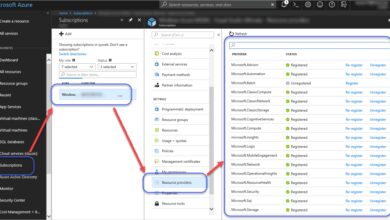
Navigate to the Azure Portal, search for “Data Factory,” and follow the setup wizard. You’ll need to specify a name, subscription, resource group, and region.
Step 2: Define Linked Services
Next, configure linked services to connect to your source and destination systems. For instance, if you’re pulling data from an on-premises SQL Server and loading it into Azure Data Lake Storage Gen2, you’d create two linked services:
- One for SQL Server using a self-hosted integration runtime.
- Another for Azure Data Lake Storage using Azure authentication (e.g., Service Principal or Managed Identity).
During configuration, you’ll input server names, database names, usernames, passwords, or authentication tokens, depending on the security model.
Step 3: Build Datasets and Pipelines
With connections established, define datasets that point to specific tables, files, or APIs. Then, create a pipeline using the visual authoring tool. Drag a Copy Data activity onto the canvas, link it to your source and sink datasets, and configure mapping rules.
You can also add parameters, variables, and expressions to make pipelines dynamic. For example, use a pipeline parameter to specify a date filter so the same pipeline can process data for different days without reconfiguration.
Advanced Features That Make Azure Data Factory Stand Out
Beyond basic data movement, Azure Data Factory offers advanced capabilities that empower data teams to build intelligent, scalable, and automated workflows.
Data Flow: No-Code Data Transformation
Azure Data Factory’s Data Flow feature allows users to perform complex transformations without writing code. Using a visual interface, you can apply filters, joins, aggregations, derived columns, and even machine learning models directly within the pipeline.
- Runs on Azure Databricks under the hood but abstracts away cluster management.
- Supports streaming data transformations for near real-time processing.
- Enables schema drift handling—automatically adapts to changes in input data structure.
This is especially useful for data engineers who want to prototype transformations quickly or for analysts who prefer a GUI over coding in Spark or SQL.
Mapping Data Flows vs. Wrangling Data Flows
There are two types of data flows in ADF:
- Mapping Data Flows: Code-free Spark-based transformations integrated into pipelines. Best for production-grade ETL workflows.
- Wrangling Data Flows: Built on Power Query Online, ideal for data preparation and cleansing with a familiar Excel-like interface.
While Mapping Data Flows offer more scalability and integration with CI/CD pipelines, Wrangling Data Flows cater to business users who need intuitive tools for data shaping.
Pipeline Debugging and Monitoring
Debugging pipelines in real time is crucial for development. ADF provides a built-in debug mode that allows you to run pipelines in a temporary environment without affecting production.
- View detailed logs, execution duration, and data preview at each step.
- Set breakpoints and inspect variable values during execution.
- Monitor pipeline runs via the Monitor tab, which shows success/failure status, duration, and error details.
Additionally, you can integrate with Azure Monitor and Log Analytics for centralized logging and alerting.
Integration with Other Azure Services
Azure Data Factory doesn’t operate in isolation—it’s designed to work seamlessly with other services in the Microsoft Azure ecosystem, enhancing its functionality and reach.
Integration with Azure Databricks
For advanced analytics and machine learning, ADF can trigger notebooks in Azure Databricks. This allows data engineers to leverage Python, Scala, or SQL for complex transformations that go beyond what’s possible in native data flows.
- Pass parameters from ADF to Databricks notebooks (e.g., file paths, dates).
- Use Databricks clusters for heavy computational tasks like model training or large-scale joins.
- Handle job failures and retries using ADF’s robust error handling.
This integration is widely used in AI-driven pipelines where data must be preprocessed before feeding into ML models.
Connection with Azure Synapse Analytics
Azure Synapse (formerly SQL Data Warehouse) is a common destination for data loaded via ADF. The integration allows for efficient bulk loading using PolyBase or COPY INTO commands, significantly speeding up data ingestion.
- Use ADF to orchestrate ELT workflows where transformation happens inside Synapse using T-SQL.
- Leverage Synapse pipelines alongside ADF for hybrid orchestration scenarios.
- Enable data vault modeling or star schema creation through automated pipelines.
Many enterprises use this combination for building enterprise data warehouses with near real-time capabilities.
Synergy with Power BI and Logic Apps
After data is processed, ADF can trigger Power BI dataset refreshes using webhooks or Logic Apps. This ensures dashboards are always up-to-date with the latest information.
- Automate report generation after nightly ETL jobs.
- Send email notifications via Outlook using Logic Apps when pipelines fail.
- Integrate with Microsoft Teams for operational alerts.
This end-to-end automation enhances decision-making speed across the organization.
Security, Compliance, and Governance in Azure Data Factory
In enterprise environments, security and compliance are non-negotiable. Azure Data Factory provides robust mechanisms to protect data and meet regulatory requirements.
Role-Based Access Control (RBAC)
ADF integrates with Azure Active Directory (AAD) to enforce fine-grained access control. You can assign roles such as Data Factory Contributor, Reader, or Owner at the subscription, resource group, or factory level.
- Prevent unauthorized users from modifying pipelines.
- Audit user actions using Azure Activity Logs.
- Implement least-privilege principles to minimize risk.
This ensures that only authorized personnel can view or edit sensitive data workflows.
Data Encryption and Private Endpoints
All data in transit and at rest is encrypted by default. ADF uses TLS 1.2+ for secure communication between components.
- Enable Private Endpoints to restrict data factory access to a virtual network, preventing public internet exposure.
- Use Azure Key Vault to store secrets like connection strings and API keys securely.
- Leverage Managed Identities instead of hardcoded credentials for better security.
These features help organizations comply with standards like GDPR, HIPAA, and SOC 2.
Audit Logging and Data Lineage
Tracking data lineage—understanding where data comes from and how it’s transformed—is critical for governance. While native lineage tracking in ADF is limited, it can be enhanced using:
- Azure Purview for comprehensive data cataloging and lineage visualization.
- Custom logging in pipelines to record transformation steps.
- Integration with third-party tools like Collibra or Alation.
Together, these tools provide end-to-end visibility into data flows, supporting compliance audits and impact analysis.
Best Practices for Optimizing Azure Data Factory Performance
To get the most out of Azure Data Factory, follow these proven best practices that improve efficiency, reduce costs, and enhance reliability.
Use Staging Areas for Large Transfers
When moving large volumes of data, use Azure Blob Storage or ADLS Gen2 as a staging area before loading into the final destination. This approach:
- Reduces load on source systems.
- Enables compression and format optimization (e.g., converting CSV to Parquet).
- Supports retry mechanisms in case of partial failures.
Microsoft recommends this pattern for high-throughput scenarios (Azure Architecture Center).
Optimize Copy Activity Settings
The Copy Activity has several performance tuning options:
- Adjust parallel copies to increase throughput (based on source/sink capabilities).
- Use binary copy for raw data movement without parsing.
- Enable compression (e.g., GZip) to reduce network bandwidth usage.
- Leverage partitioning for large tables to enable parallel reads.
These settings can drastically reduce pipeline execution time, especially for terabyte-scale datasets.
Implement CI/CD for Pipeline Management
Treat your data pipelines like code. Use Azure DevOps, GitHub Actions, or Git integration in ADF to implement continuous integration and deployment.
- Develop pipelines in a dev factory, test in staging, and promote to production.
- Use ARM templates or ADF’s built-in Git repository to version-control pipeline definitions.
- Automate testing and validation before deployment.
This practice improves collaboration, reduces human error, and enables rollback in case of issues.
What is Azure Data Factory used for?
Azure Data Factory is used to create, schedule, and manage data integration workflows in the cloud. It enables organizations to extract data from various sources, transform it using scalable compute services, and load it into destinations like data warehouses or analytics platforms. Common use cases include ETL processes, data migration, and real-time analytics pipelines.
Is Azure Data Factory serverless?
Yes, Azure Data Factory is a serverless service. It automatically manages the underlying infrastructure required to run pipelines, including compute resources for data movement and transformation. Users only pay for what they use, and there’s no need to provision or maintain servers.
How does Azure Data Factory differ from SSIS?
While both are data integration tools, Azure Data Factory is cloud-native and designed for modern data architectures, whereas SQL Server Integration Services (SSIS) is on-premises and requires server management. ADF offers better scalability, native cloud connectivity, and integration with big data and AI services. However, SSIS packages can be migrated to ADF using the SSIS Integration Runtime.
Can Azure Data Factory handle real-time data?
Yes, Azure Data Factory supports event-driven and near real-time data processing through features like Change Data Capture (CDC), tumbling window triggers, and integration with Azure Event Hubs and Stream Analytics. While not a streaming engine itself, ADF can orchestrate streaming workflows effectively.
How much does Azure Data Factory cost?
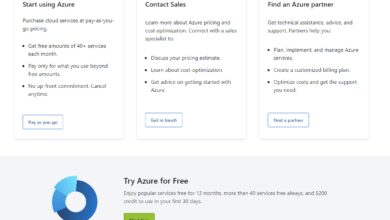
Azure Data Factory pricing is based on activity runs, data movement, and data flow execution. The service offers a free tier with limited monthly activity runs, and paid tiers charge per pipeline execution and compute usage. Detailed pricing can be found on the official Azure pricing page.
Microsoft’s Azure Data Factory stands as a cornerstone of modern cloud data integration. From its intuitive visual interface to powerful orchestration capabilities, it empowers organizations to build scalable, secure, and automated data pipelines. Whether you’re migrating legacy systems, building a data lakehouse, or enabling real-time analytics, ADF provides the tools needed to succeed. By leveraging its advanced features, integrating with the broader Azure ecosystem, and following best practices, data teams can unlock unprecedented efficiency and insight. As data continues to grow in volume and complexity, Azure Data Factory remains a vital asset for any data-driven enterprise.
Recommended for you 👇
Further Reading: